According to Tesla's official guide for the Model 3 (Do It Yourself, "Charge Port Status Lights"), white (nothing connected), blinking blue (talking to the charger), solid blue (waiting for a scheduled charge), blinking green (charging) and solid green (complete) are normal. Amber (the connector is not fully seated) and solid red (a fault has stopped charging) need action. Tesla suggests checking the color before you walk away.
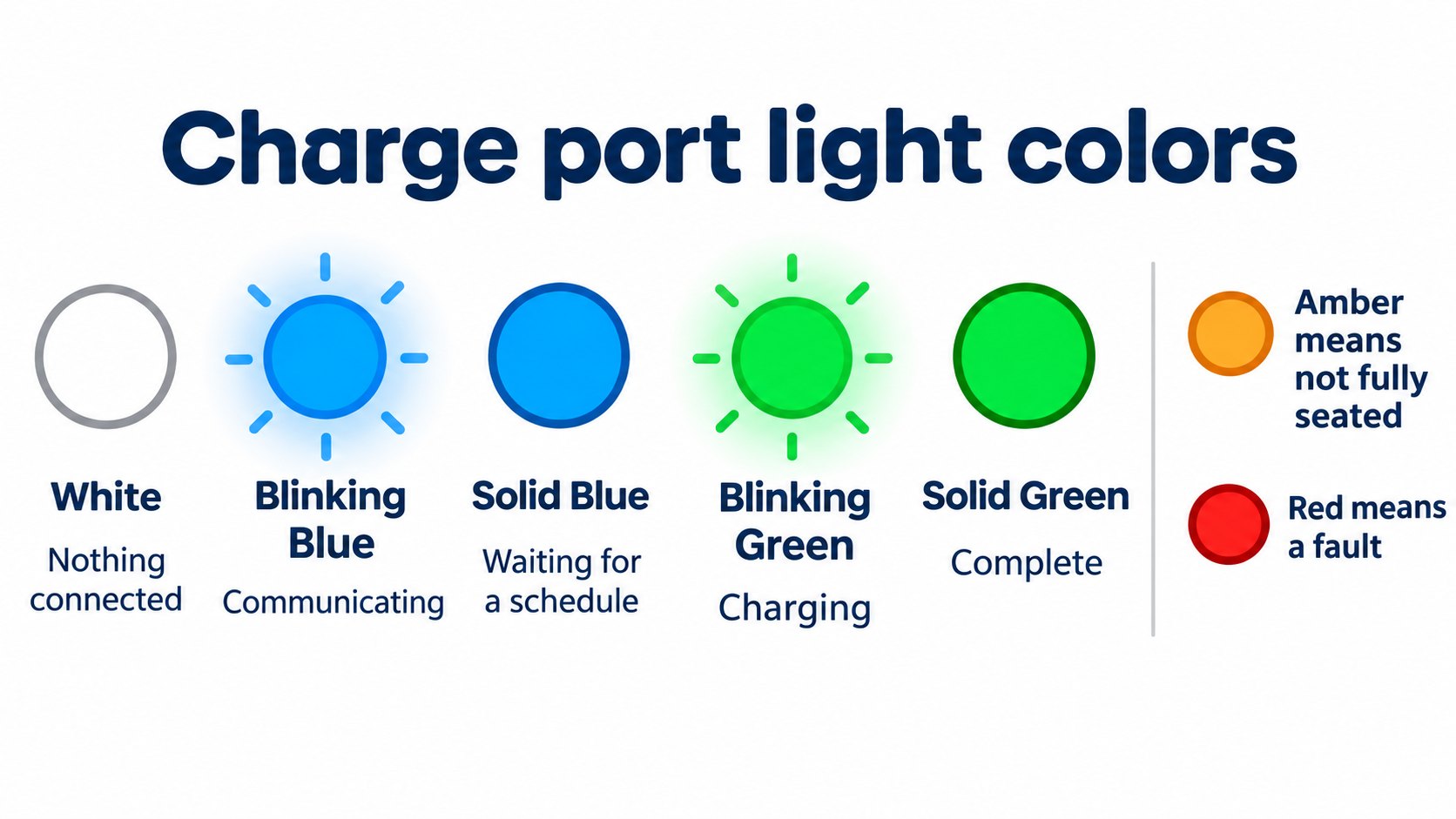
When you plug in, the charge port light tells you the state. We summarize the table in the Model 3 Do It Yourself page "Charge Port Status Lights".
The conclusion: green is charging, blue is waiting, amber and red need action
While the port is open, the light changes color to show the current state and help troubleshoot. The light turns off after a short time if the car is locked.
| Color | Meaning | What to do |
|---|---|---|
| White (solid) | Ready to charge with no connector, or the latch is unlocked and the connector can be removed | Insert the connector to charge; remove it when done |
| Blue (blinking) | Communicating with the charging station | Nothing. Wait a few seconds for blinking green or solid blue |
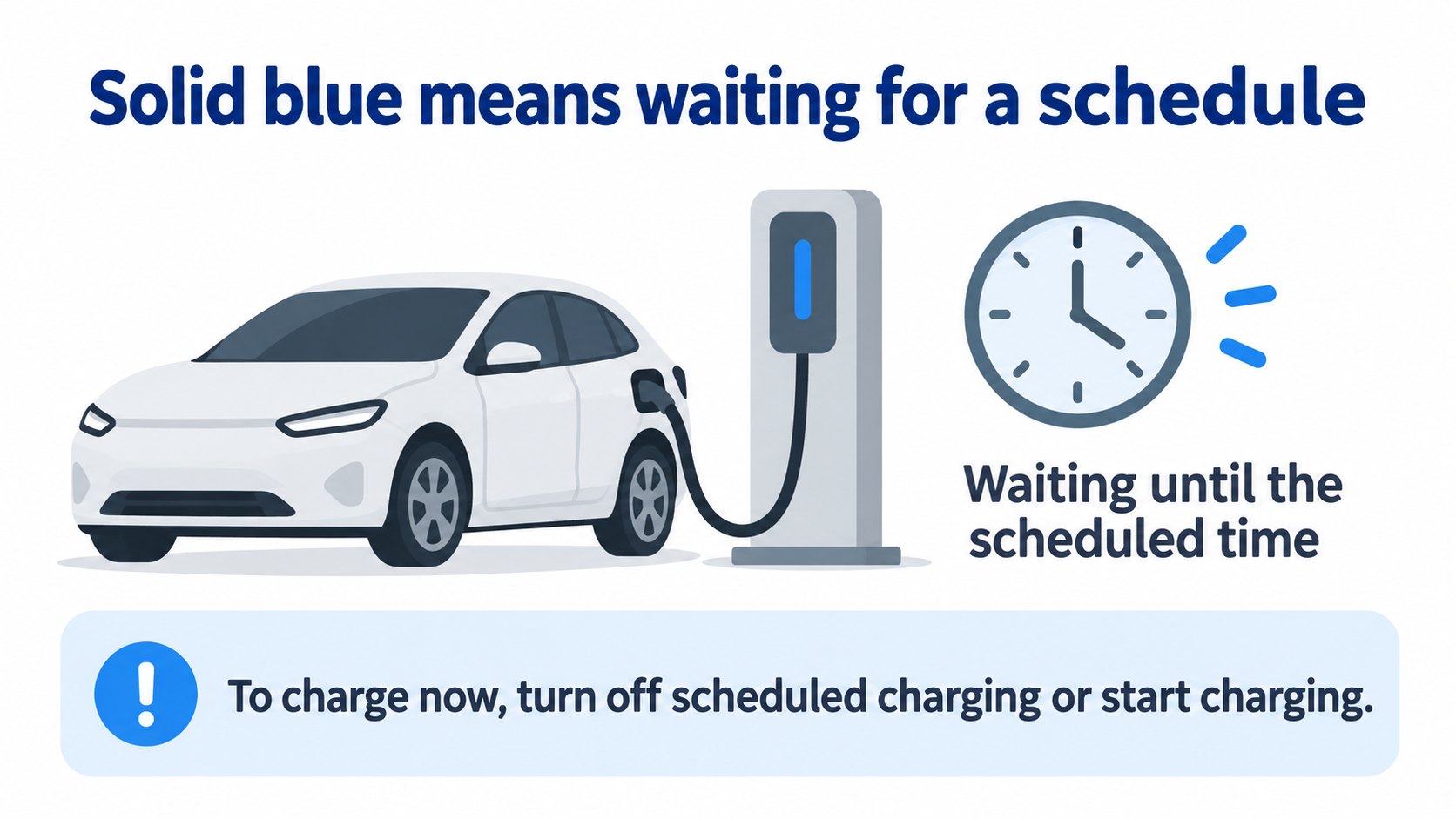
| Blue (solid) | A connector is plugged in and a scheduled charge starts later. Not charging now | To charge now, turn off Scheduled Charging or touch Start Charging on the screen or app. Otherwise nothing |
| Green (blinking) | Charging. Blinking slows near a full charge | Nothing; remove the cable when done |
| Green (solid) | Charging complete | Remove the cable before driving |
| Amber (solid) | The connector is not fully plugged in | Realign and insert fully. If it persists, check for obstructions, then try another cable |
| Amber (blinking) | Charging at reduced current because it is not fully plugged in | Same as above |
| Red (solid) | A fault is detected; charging has stopped or cannot begin | Check the screen for a fault message; try another cable or reset the charging source; if needed, turn the car off and on on the screen and retry |
| No light | Locked and sleeping for a while | Nothing; unlocking or pressing the handle button brings it back |
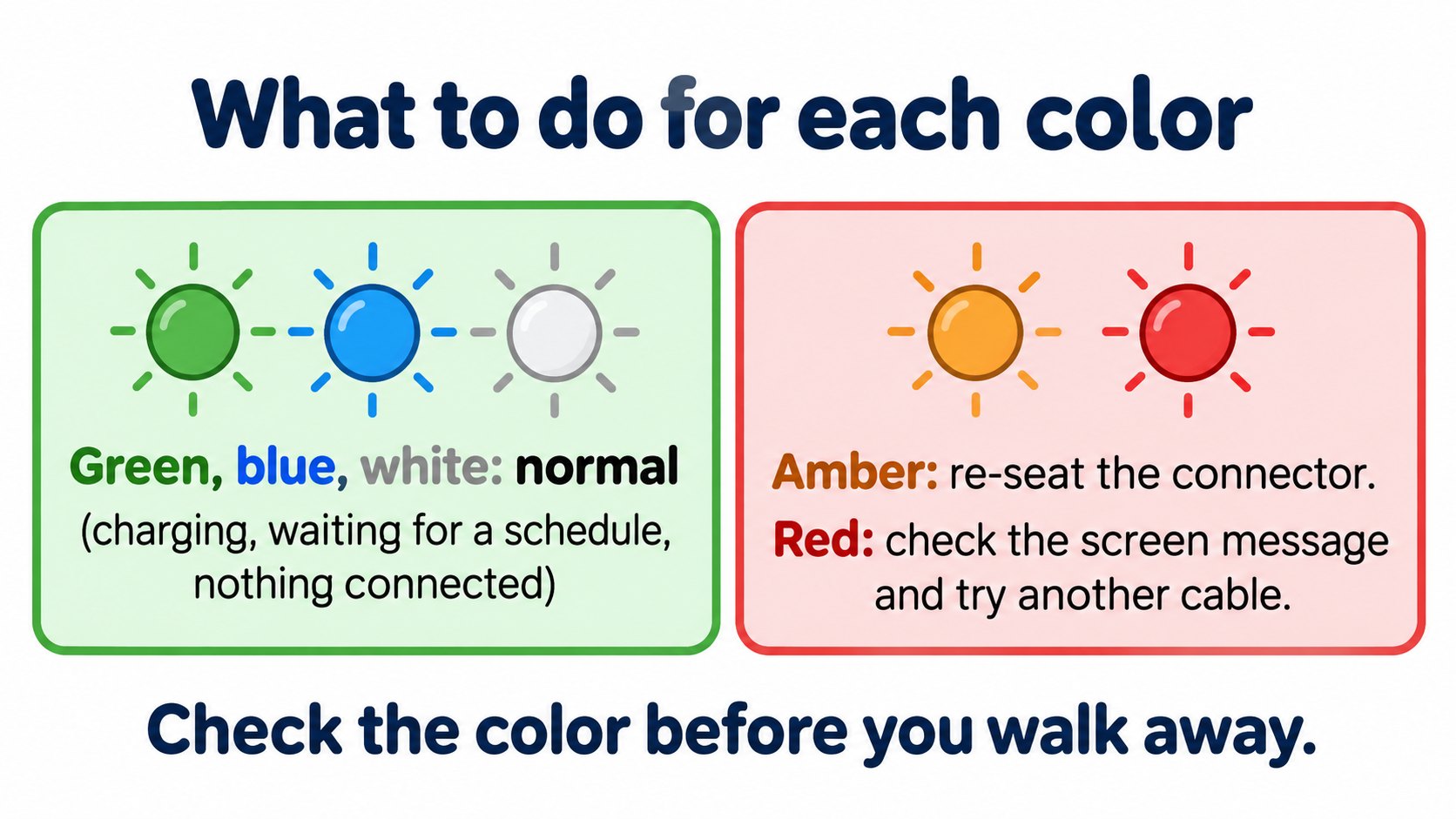
Check the color before you leave
The guide says:
- After plugging in, check the port color before walking away.
- If you see red or amber, troubleshooting before you leave helps ensure a successful session.
Solid blue: scheduled charging
Solid blue appears when scheduled charging is set. The guide notes that Scheduled Charging remembers your location. The Model Y manual (Japanese version) says scheduled charging is used only when you return to the location it was set for and is ignored at fast chargers such as Superchargers. See also the scheduling note in the heat pump article.
FAQ
The port flashes green. What does that mean?
It is charging. The blinking slows near a full charge.
It is solid blue and not charging.
Scheduled charging is set and the car is waiting. Turn it off or touch Start Charging to charge now.
Amber, solid or blinking?
The connector is not fully seated. Realign and insert it fully; if that fails, check for obstructions and try another cable.
Solid red?
A fault has stopped charging. Check the screen message, try another cable or reset the charging source.
No light?
The car is locked and has been sleeping. This is normal.
Summary
- White: nothing connected. Blinking blue: communicating. Solid blue: waiting for a schedule. Blinking green: charging. Solid green: complete.
- Amber: connector not fully seated; re-seat it. Red: fault; check the screen and try another cable.
- Check the color before you walk away.
Sources (checked 2026-10-16)
- Model 3 Do It Yourself, "Charge Port Status Lights": https://service.tesla.com/docs/Public/diy/model3/en_us/GUID-07FBA723-779F-4CF0-B9A7-AA8076335CE4.html
- Tesla Support, "Supercharging": https://www.tesla.com/support/charging/supercharging
- Model Y Owner's Manual (Japanese), "Scheduled Precondition and Charge": https://www.tesla.com/ownersmanual/modely/ja_jp/GUID-76995CEC-6402-4BFF-99FA-CEFA36E64A19.html
This article is for learning about science and technology and is not investment advice. Facts and the author's reading are kept separate. The figures are AI-generated illustrations.
Thank you for reading. Was this article useful to you?
Thank you. If you like, tell us what you thought in a line or two.
Optional. No name or email needed.
Received. We will use your words to make better articles.