According to the Model 3 owner's manual (North America, software 2026.32), Sentry Mode keeps the cameras and sensors watching while the car is locked and in Park; when it detects a threat it flashes the headlights, sounds the alarm, notifies the mobile app and saves video to a USB drive. Dashcam records video while driving to a USB drive, and Dashcam must be on for Sentry Mode to work. Recording needs a USB drive of at least 64 GB with a sustained write speed of at least 4 MB/s, and the footage is kept on the drive, not sent to Tesla.
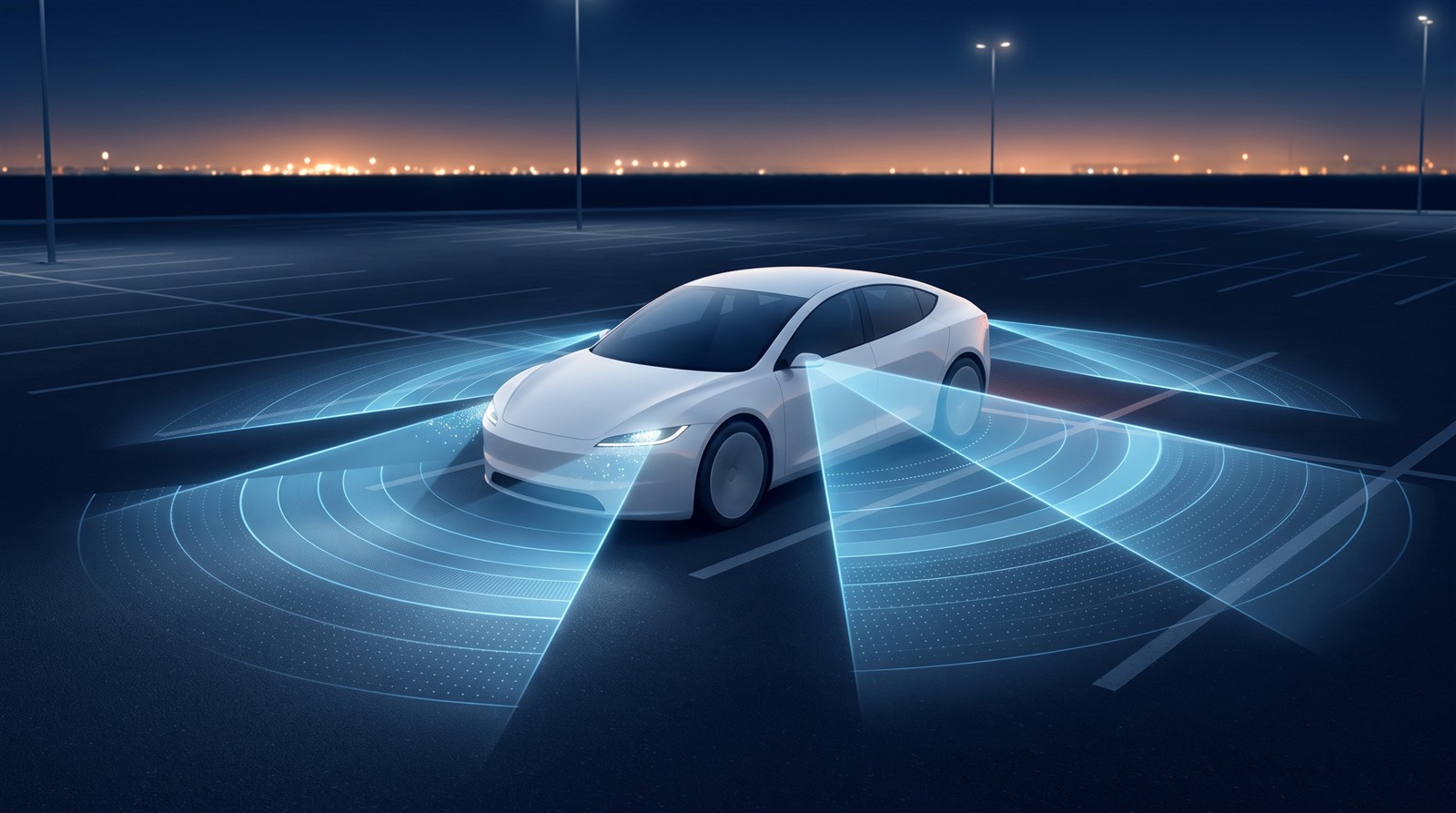
A Tesla has many cameras. Two features use them: Dashcam, which records while you drive, and Sentry Mode, which watches the car while it is parked. This article checks what they do, and what to watch out for, in the Model 3 owner's manual (North America and Japanese editions, software 2026.32).
In short: Dashcam records while driving, Sentry Mode watches while parked, and both need a USB drive
| Dashcam | Sentry Mode | |
|---|---|---|
| When it works | While driving | While parked (locked and in Park) |
| What it does | Records video around the car | On a threat: flashes lights, sounds the alarm, notifies the app, records |
| Default | The manual gives no default (it says the car does not record when Dashcam is Off) | Off (disabled by default) |
| Needs | A properly formatted USB drive | The same, and Dashcam must be on |
| Saved to | The USB drive | The USB drive |
The key point: without a USB drive, nothing is saved. Without one, Sentry Mode can still notify the app, but no camera footage is recorded, the manual says.
How Dashcam works
According to the manual, Dashcam records video of the car's surroundings, much like an external dashcam.
Three ways footage is saved
- Auto: the car saves a recording when it detects a "safety-critical event" such as a collision or airbag deployment. The manual warns: "Do not rely on Dashcam to automatically record all safety-critical events."
- Manual: touch the Dashcam icon to save the most recent ten minutes.
- On Honk: pressing the horn saves the most recent ten minutes. It can be combined with Auto or Manual.
The icon shows five states: recording, available, paused, busy and saved. Pause Dashcam before removing the drive to avoid losing footage.
Privacy
- Recordings are saved locally on the USB drive and are not sent to Tesla.
- The car does not record when Dashcam is off.
- Recordings can be encrypted (Controls > Safety > Encrypt Dashcam Recordings), recommended but optional.
- Encrypted clips can be viewed only on the car that recorded them, or with a Tesla account that was linked to the car at the time. On a computer, open dashcam.tesla.com in a browser and sign in; the manual says the browser fetches the keys and decrypts the files locally.
How Sentry Mode works
In the manual's words, Sentry Mode is an "intelligent vehicle security system". When on, the cameras and sensors stay powered while the car is locked and in Park.
When it sees a threat
If it detects a threat, or the sensors detect "jerky movement" such as being towed or shaken, Sentry Mode:
- Pulses the headlights.
- Sounds the alarm.
- Shows a message on the screen saying cameras may be recording (to inform people outside).
- Alerts you in the mobile app.
- Saves footage to the USB drive (if installed).
The manual's cautions matter: if an event is not clearly a threat, the car records but does not sound the alarm; not every impact is detected; and "do not rely on Sentry Mode to protect Model 3 from all possible security threats."
How to use it
- Prepare a USB drive (see below).
- With the car in Park, turn on Dashcam (Controls > Safety > Dashcam). Dashcam must be on for Sentry Mode to work.
- Touch Controls > Sentry Mode > On. The icon turns red.
Voice commands work too ("Sentry on", "Enable Sentry").
Settings
- Exclude locations: Sentry Mode can be kept from turning on automatically at Home, Work or Favorites. A location is recognized when the car is parked within about 1,640 feet (500 m) of it. Turning Sentry Mode on or off by hand overrides this until the next drive.
- Camera-Based Detection: when on, the exterior cameras are used as well as the sensors. When off, footage is saved only if a physical threat is detected.
- Disable Sentry Sounds: silences the alarm. The app notification and saving of the last 10 minutes of footage still happen.
When it is unavailable
- In Low Power Mode Sentry Mode does not work; if the car enters it, Sentry Mode turns off and the app notifies you (see Parked energy use).
- Power consumption may increase while it is active. The manual gives no figure.
USB drive requirements
From "USB Drive Requirements for Recording Videos" in the manual:
| Item | Requirement |
|---|---|
| Capacity | At least 64 GB (more is better; video takes a lot of space) |
| Write speed | Sustained 4 MB/s or more (not peak speed) |
| Standard | USB 2.0 compatible (a USB 3.0 drive must also support USB 2.0) |
| Format | Formatted by the car (exFAT), or on a computer as exFAT, MS-DOS FAT (Mac), ext3 or ext4. NTFS is not supported |
| Folder | TeslaCam (and TeslaTrackMode on cars with Track Mode) |
- Cars built from about 2020 come with a pre-formatted USB drive in the glovebox.
- To format in the car, use Controls > Safety > Format USB Drive. This erases the drive.
- On some cars the USB-C ports cannot format, save or play video. Use the USB-A port in the glovebox. (The manual adds that on some cars built after about November 1, 2021, the center-console USB ports are charge-only.)
How recordings are kept
- Recording is cyclic: footage you do not save is overwritten. How long it lasts depends on the drive: as little as 1 hour on small drives, up to 24 hours on drives of 1 TB or more.
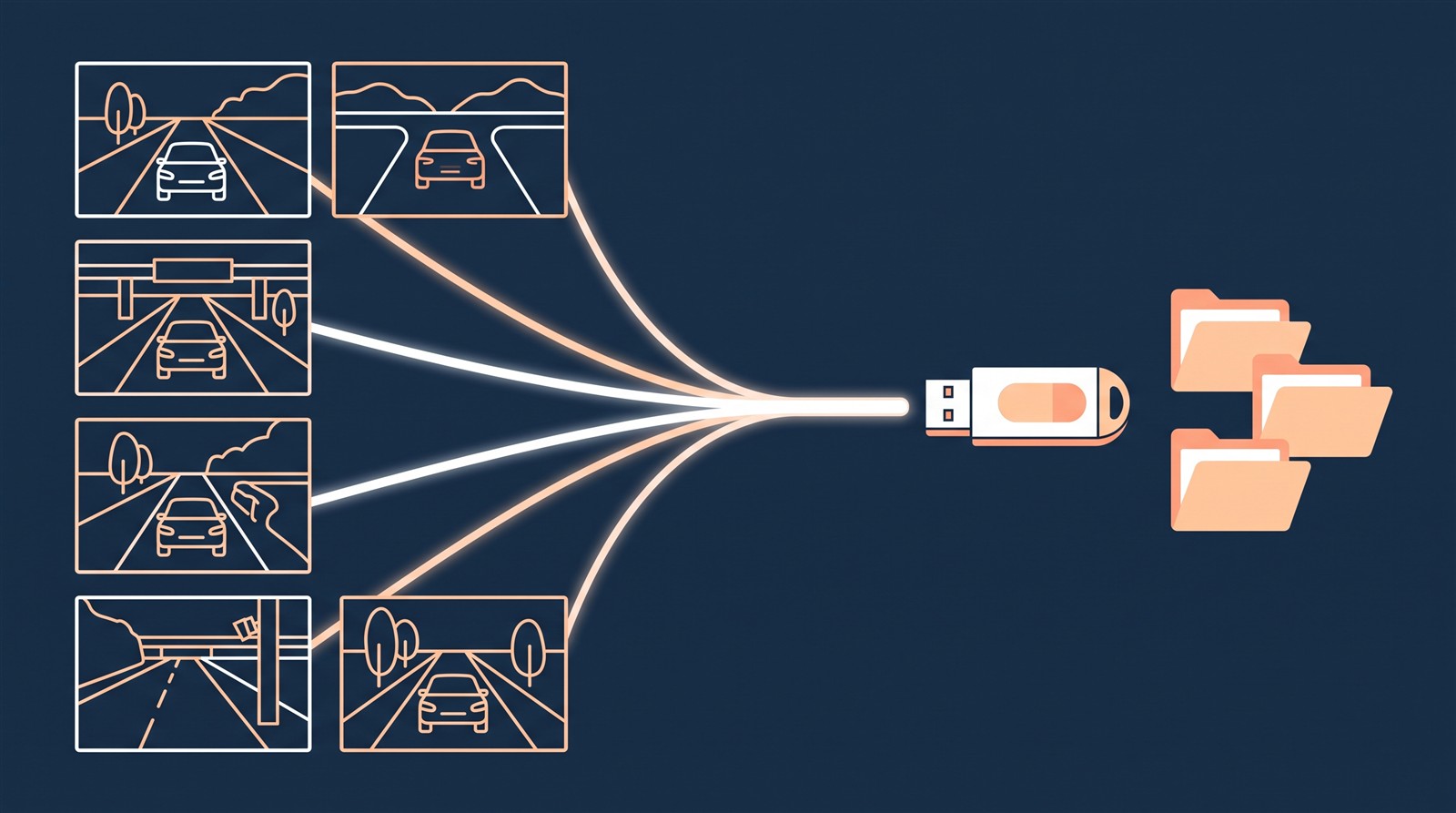
- Each saved clip holds six videos: front, rear, left, right, left pillar and right pillar.
- On the screen or in the app you can also see the gear, speed and steering angle at the time (the manual says this is for reference and may not reflect every detail).
- On a computer, look in the drive's TeslaCam folder.
| Folder | What it holds |
|---|---|
| RecentClips | Up to 60 minutes of footage |
| SavedClips | Clips you saved |
| SentryClips | Sentry Mode event clips. If space runs low, the oldest are deleted and cannot be recovered |
| EncryptedClips | Encrypted Dashcam clips (cannot be played directly on a computer) |
When the drive is full, new footage cannot be saved. The manual advises moving videos off the drive regularly.
"View Live Camera" (watching live in the app)
Sentry Mode settings include watching the car's cameras live in the app. Here the English and Japanese editions differ.
| North America (English, software 2026.32) | Japanese edition (same version) | |
|---|---|---|
| What you can see | The surroundings, through the exterior cameras | The car's interior, through the cabin camera |
| Time allowed | About 1 hour cumulative per day (15 minutes in some regions) | About 15 minutes cumulative per day |
| App requirement | Premium Connectivity, app 4.2.1 or newer | Premium Connectivity, app 4.55.6 or newer |
Both are Tesla's owner's manuals. Which behavior a car in Japan actually has is not confirmed. Common to both: the car tells people nearby (lights and a screen message in the English edition; a screen message in the Japanese edition), the feed is fully encrypted and Tesla cannot access it, and no audio is captured.
[Author's reading (not a confirmed fact)]
From how the manual is written, the design seems to cover two roles, saving collisions automatically while driving and watching for movement while parked, with the same cameras and the same USB drive. But how much it can really detect is something the manual itself limits ("not all"), and I have not tested it.
FAQ
Is Sentry Mode on by default?
No. The manual says Sentry Mode is disabled by default. Turn it on by voice, in the app or on the screen.
Does it work without a USB drive?
The app notification still arrives, but no camera footage is kept (manual). To keep footage you need a drive that meets the requirements.
Which USB drive should I choose?
The manual asks for at least 64 GB, a sustained write speed of at least 4 MB/s and USB 2.0 compatibility. NTFS cannot be used. Cars built from about 2020 include a formatted drive in the glovebox.
Is footage sent to Tesla?
The manual says Dashcam recordings are not sent to Tesla. The live camera feed is fully encrypted and Tesla cannot access it.
How much battery does Sentry Mode use?
Only "power consumption may increase" is written; there is no number. In Low Power Mode, Sentry Mode turns off.
Are the outside cameras always recording?
Not when Dashcam is off (manual). They record when Dashcam or Sentry Mode is in use, depending on the conditions.
Summary
- Dashcam works while driving and Sentry Mode while parked, both with the cameras. Keeping footage needs a USB drive.
- Sentry Mode is off by default and needs Dashcam turned on.
- USB drive: 64 GB or more, sustained 4 MB/s or more, USB 2.0 compatible, no NTFS.
- Footage is overwritten; it lasts about 1 hour on small drives up to 24 hours on 1 TB or larger. One clip holds six videos.
- Footage is not sent to Tesla, is stored on the USB drive, and can be encrypted.
Related articles: Doors and locks, Collision avoidance, Parked energy use, Charge port lights.
Next article: coming soon.
Sources (checked 2026-10-18)
- Tesla, "Model 3 Owner's Manual (2024+, software 2026.32, North America)", Sentry Mode: https://www.tesla.com/ownersmanual/model3/en_us/GUID-56703182-8191-4DAE-AF07-2FDC0EB64663.html
- Tesla, "Model 3 Owner's Manual", Dashcam: https://www.tesla.com/ownersmanual/model3/en_us/GUID-3BCC07CE-5EA2-4F40-99D1-27690898FF3C.html
- Tesla, "Model 3 Owner's Manual", USB Drive Requirements for Recording Videos: https://www.tesla.com/ownersmanual/model3/en_us/GUID-F311BBCA-2532-4D04-B88C-DBA784ADEE21.html
- Tesla, "Model 3 Owner's Manual (Japanese edition)", Sentry Mode: https://www.tesla.com/ownersmanual/model3/ja_jp/GUID-56703182-8191-4DAE-AF07-2FDC0EB64663.html
This article is for learning about science and technology and is not investment advice. Facts and the author's reading are written separately. Figures are AI-generated illustrations.
Thank you for reading. Was this article useful to you?
Thank you. If you like, tell us what you thought in a line or two.
Optional. No name or email needed.
Received. We will use your words to make better articles.